 Flipic Lens
How to quickly view RAW files on a Mac
Updated 2026-11-07
Copy the RAW files to a folder on your Mac, open that folder in Flipic Lens, double-click any photo and use ← → to move through the folder. There is no import step and no catalog. Flipic Lens opens common camera RAW formats including ARW, CR2, CR3, NEF, RAF and DNG.
Quick Look or a folder viewer
Quick Look is a quick way to glance at a few files: select them in Finder, press Space, and use the arrow keys to browse the selection. It is useful when you already know which files you want. The limit is that you are browsing a selection, not the whole folder.
Quick Look is also temporary: close the window and the selection is gone. A folder viewer keeps the folder open, so you can come back to the same place after a break.
A folder viewer fits when you want to start at one photo and keep going. Flipic Lens reads the folder as it is, so the next photo is whatever comes next in the folder, not the next item you happened to select. You can sort by name, date taken, date modified or file size.
Check focus before you rate
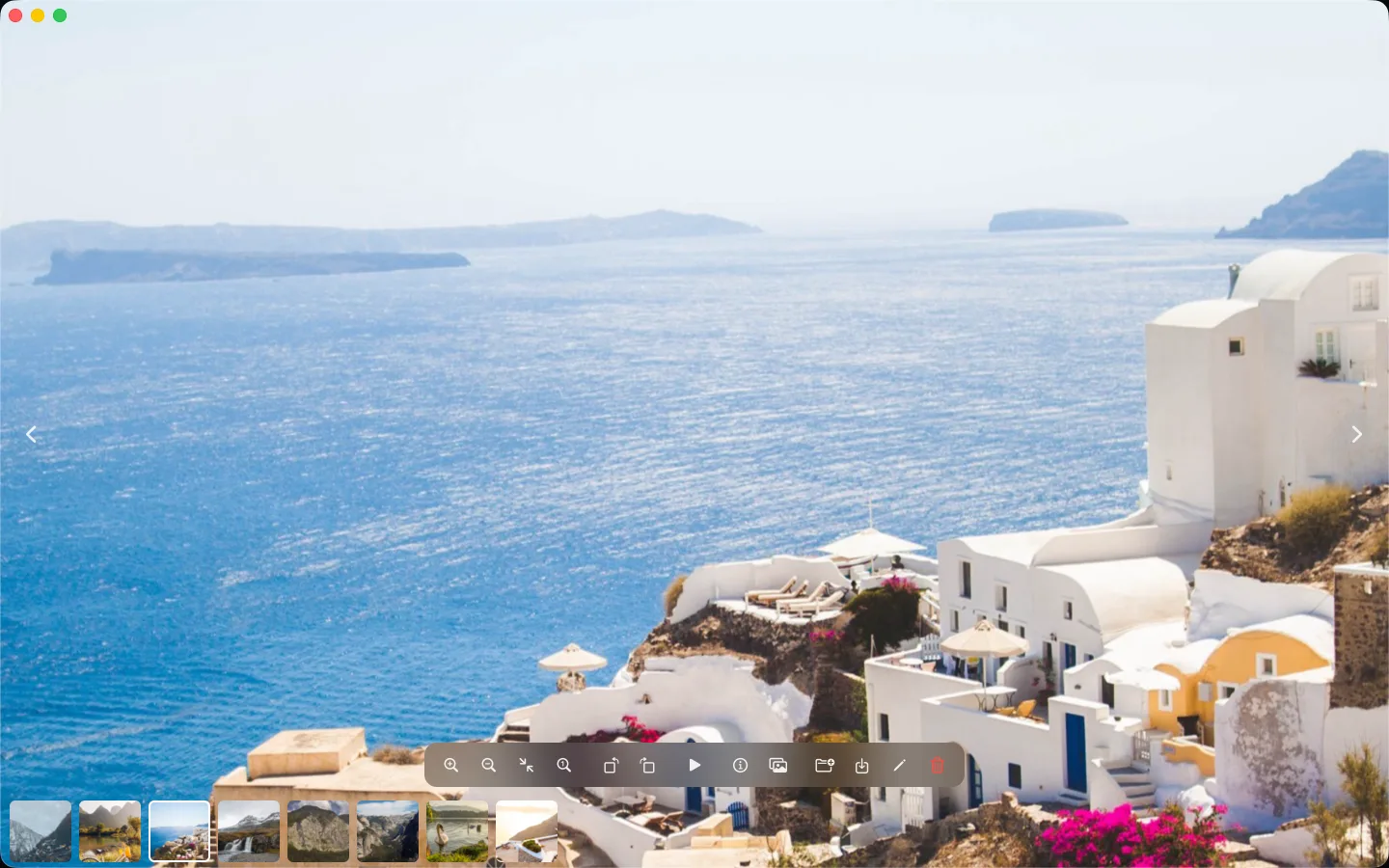
Point at the eyes or another detail and hold 0 to zoom to 100% there. Let go to fit the photo. Press I for the camera, lens, shutter speed, aperture, ISO and date taken. When two frames look close, press C to compare two side by side, or ⇧C for four.
If you shoot bursts, comparing two frames saves going back and forth between them and trying to remember the last. The compare view keeps the same zoom and position, which is exactly what you need for eyes and expressions.
Then rate with 1 to 5 and mark keepers with P. Ratings are written as standard XMP: into the file for JPEG, HEIC and TIFF, and into a same-name .xmp sidecar for proprietary RAW. The RAW file itself is not changed.
A simple RAW routine
- Copy the card to a folder. Do not rename anything yet.
- Open the folder in Flipic Lens and page from the first frame, pressing 0 on anything that looks soft.
- Rate the keepers with 1 to 5, mark the ones you want to edit with P, then deal with the rejects.
RAW and JPG with the same name
If your camera writes both a RAW and a JPG, the free version shows them as two photos. They are still treated as a pair when you rate, delete, move or export them, and Cleanup Mode counts them as one. The Pro version can show the pair as one photo; press V to switch between the RAW and the JPG.
To review a burst, see how to compare similar photos side by side on Mac. To make Flipic Lens the default viewer, open Settings (⌘,) and click Make Default Viewer; common image formats and camera RAW are set in one go.
If you are choosing a viewer, the wider list is in open-source image viewers for Mac. If you are culling a whole shoot, the event workflow is in how to cull hundreds of event photos on a Mac.
FAQ
Does viewing a RAW change the file?
No. Viewing only reads it. Ratings on proprietary RAW go into a same-name .xmp sidecar; the RAW itself is not changed.
Can I see RAW and JPG as one photo?
The free version shows them as two but treats them as a pair when rating, deleting, moving and exporting. Pro can merge the pair and switch with V.
Which RAW formats does Flipic Lens open?
Common camera RAW including ARW, CR2, CR3, NEF, RAF and DNG. Other formats macOS can decode generally open too.
Flipic Lens is a free, open-source image viewer for Mac: double-click one photo and page through the whole folder with the arrow keys.
- Free and open source
- About 5 MB download
- macOS 13 or later
- Apple silicon and Intel
- Notarized by Apple
- No account needed
Flipic Lens is a Mac app and can't be installed on a phone. Copy the address and open it in a browser on your Mac.