 Flipic
How to batch convert HEIC to JPG on Mac
Updated 2026-10-31
iPhones save photos as HEIC: small files, but many Windows PCs, web forms and older apps can't open them. Your Mac can convert them without paid software; the difference is how many at a time and how many clicks.
1. Finder: Convert Image
- Select the HEIC files in Finder.
- Control-click and choose Quick Actions › Convert Image.
- Pick JPEG and Actual Size, then click Convert to JPEG.
The JPGs appear next to the originals. Built in since macOS 12; handy for a few dozen files.
2. Export from Preview
Open the photos together in Preview, select all thumbnails in the sidebar, choose File › Export Selected Images…, and set the format to JPEG in Options.
3. The sips command in Terminal
mkdir -p jpg && for f in *.HEIC *.heic; do [ -e "$f" ] && sips -s format jpeg "$f" --out "jpg/${f%.*}.jpg"; doneRun it inside the photo folder. Results go to a jpg subfolder and thousands of files are fine.
4. Flipic: a whole folder at once
- Open the folder in Flipic.
- Choose Tools › Batch Convert, or press ⇧⌘C.
- Pick JPEG, set the quality and start.
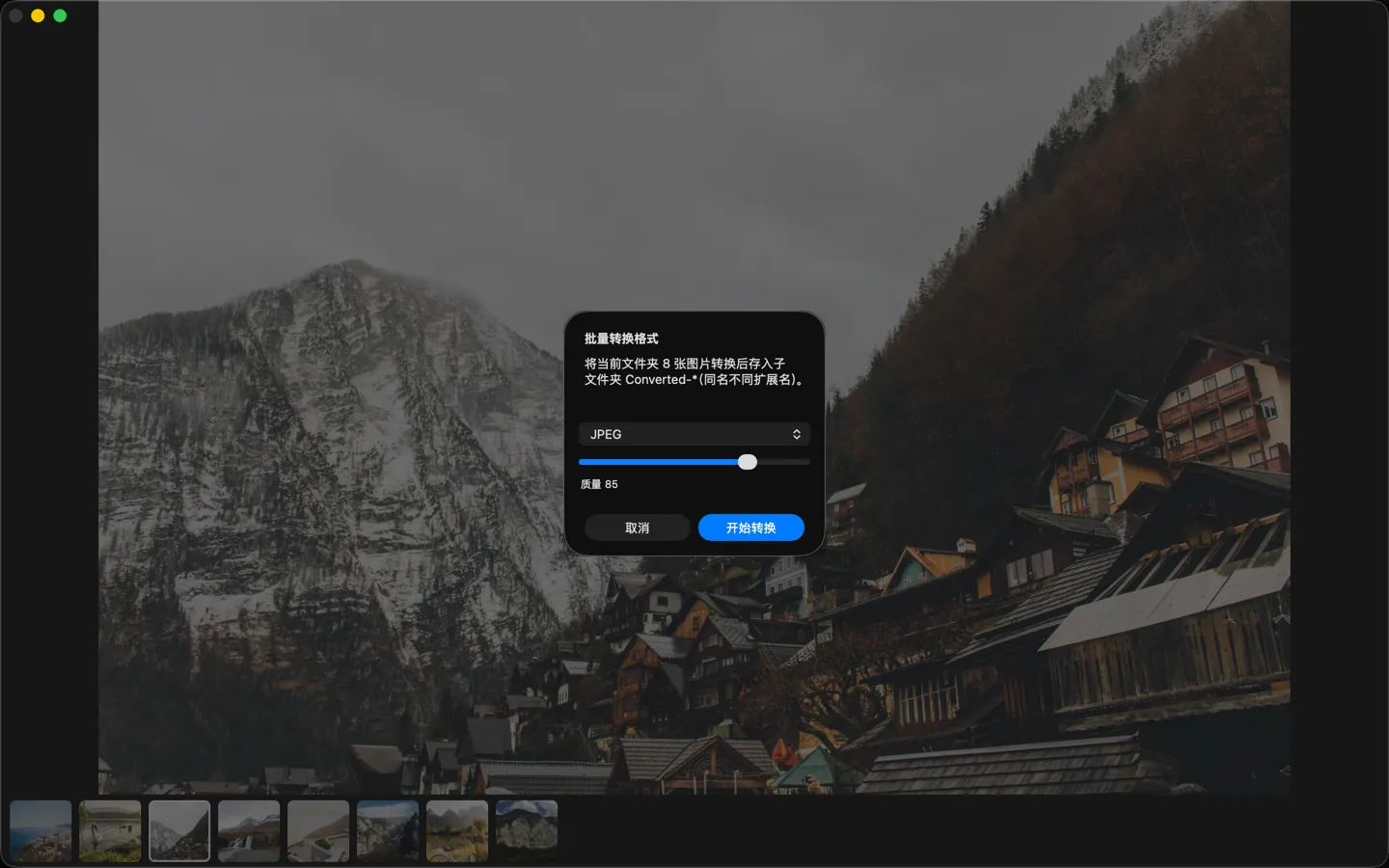
Flipic is a free, open-source image viewer for Mac: double-click one photo and page through the whole folder with the arrow keys.
- Free and open source
- 1.8 MB download
- macOS 13 or later
- Apple silicon and Intel
- Notarized by Apple
- Offline by default
Flipic is a Mac app and can't be installed on a phone. Copy the address and open it in a browser on your Mac.